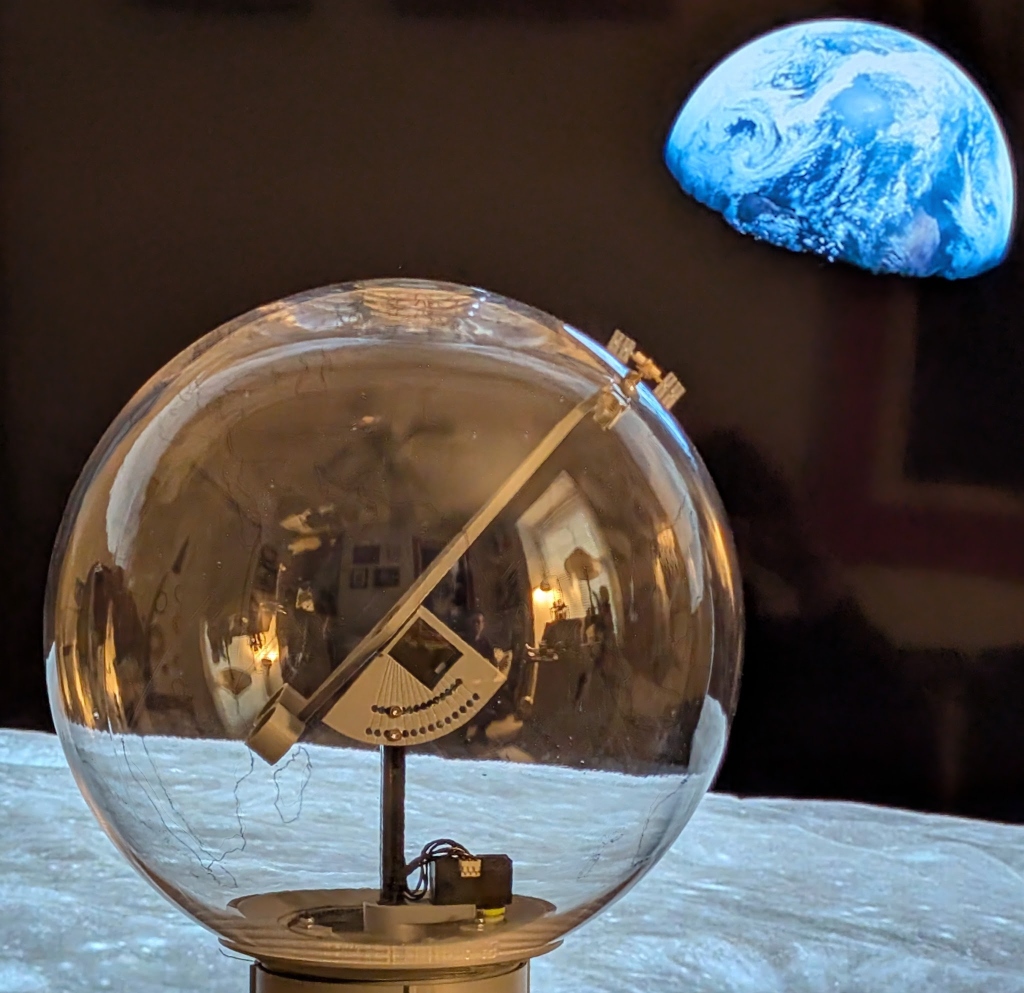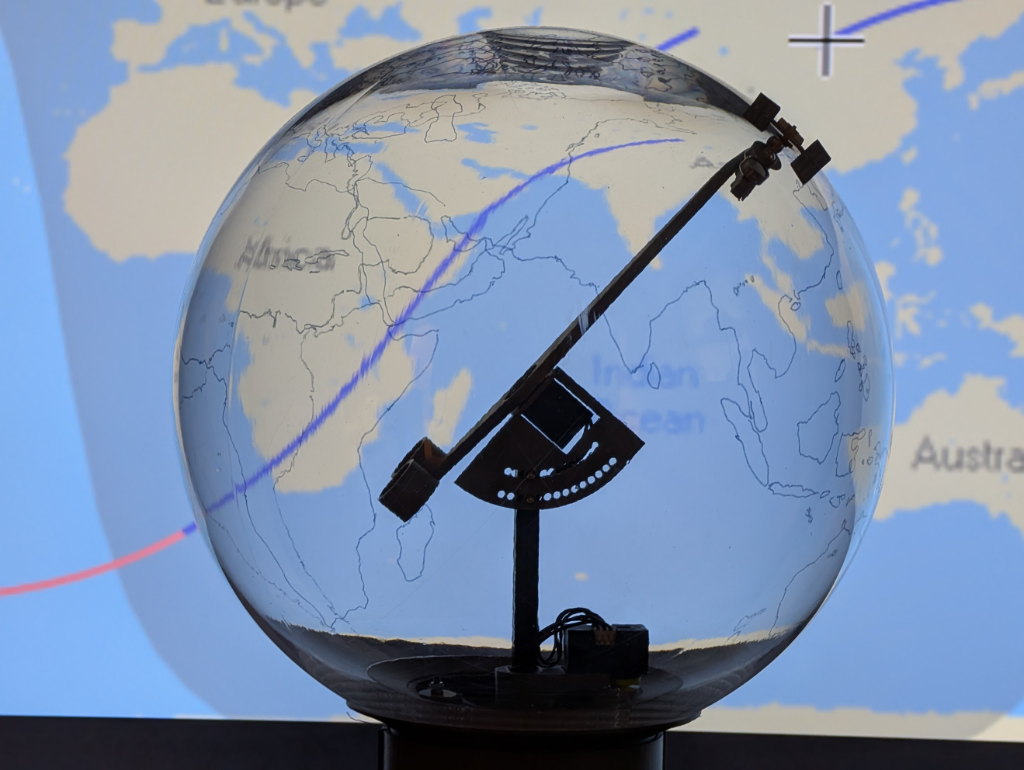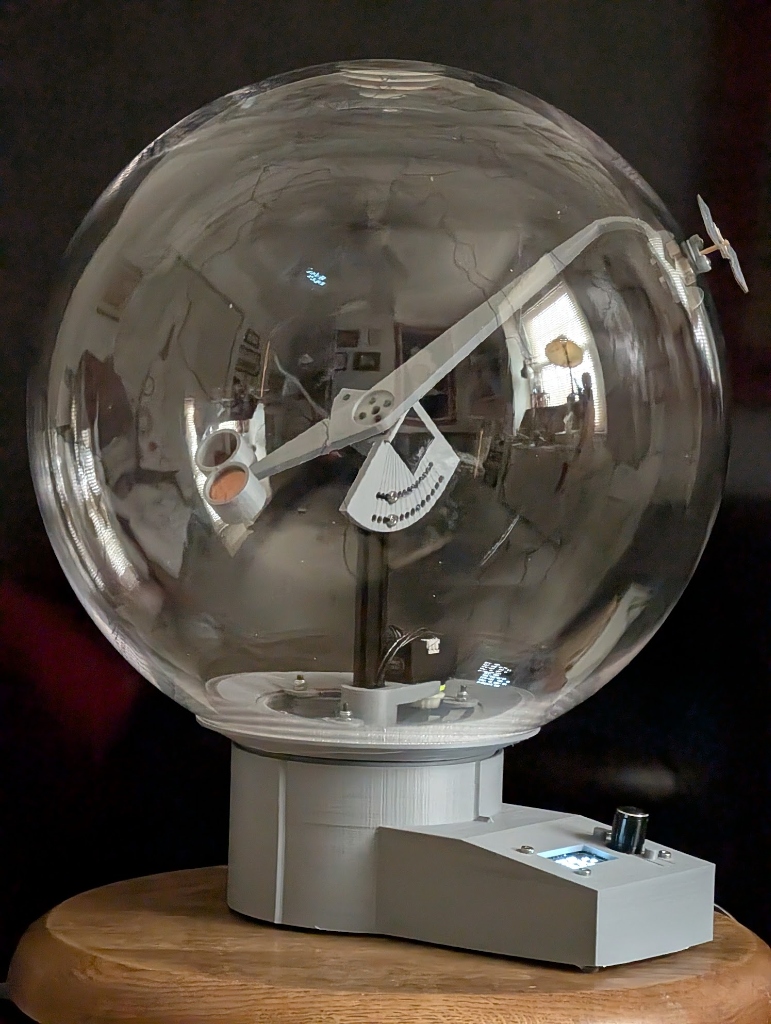
Working on a satellite tracker inspired by WillBuilds. Thanks will for posting your awesome globe. This one is base on a 13″ globe that spins instead to keep the wires from getting wrapped around the poles. Each axis turns at a constant rate (assuming a circular orbit). The setup can accommodate any circular orbit by setting the orbital inclination manually before placing the globe. The cart is held in place by to steel ball-bearings that will be aligned by two internal magnets on the orbital arm. Should be pretty neat.
Full video of Will’s Build is here: https://www.youtube.com/watch?v=nbEe-BCNutg
About a year and a half back, Samata asked me to get a gas lighter, so I headed over to the Bezo’s Barn to look up the options available. The “arc lighters” caught my attention for the several advantages they had over piezo and butane gas lighters.
The feature list, despite all the quirky language and typos, looked impressive.
Unfortunately, it’s not the epitome of “high quality” and gave up the ghost 18 months later. I tried replacing the old LiPo battery with a fresh one I had lying around, but that didn’t fix it. I wan’t in much of a mood to dig deeper to fix it, since the component numbers had been rubbed off, but I did take some teardown pictures for posterity.
Circuit wise, there’s not much to it. Some battery management parts to charge the single, 220mA LiPo from a micro-USB socket. An oscillator which drives a step up transformer via a MOSFET. The transformer has just two primary and two secondary terminals, so there’s no feedback.
Ok, so I’m a little late to the game. People have been making cool stuff using edge-lit acrylic for a long time now. A friend coaxed me into making a sign, and the potential and possibilities of edge-lit artwork captured my imagination. It is a bit labor intensive, but this tutorial, will walk you through converting a photograph or image into free-standing, desktop portrait.
Trim the image to size. Cutting around the subject looks much better than trying to capture the background in my oppinion. Using InkScape (the best) draw a poly ground around thehead.
Use this toolTight trimClick the image, hold shift, click border, right click and select “Set Clip”
File –> Export PNG image…
Run dither.py. This will covert your trimmed color image into a black and white dithered negative image (see below). Since edge lighting does not really have a grey scaling, each pixel is either black or white. The spacing of the dots provides a pseudo grey scaling.
File –> import (out_w_neg.bmp)
Resize outline, center on negative image
Cut
Ready to cut
Raster dithered negative on clear 1/4″ acrylic (100% speed, 100% power on 50W laser), cut outline. On 1/8″ dark acrylic cut outline alone.
Wiring diagramUse copper tape to route the signal from the button, to the CPU.Test the leads of the barrell adapter to make sure you know which is + and which is ground.Mark the center of the base and stick the LEDs to the base. Add standoffs.Solder LED leads, keep it flat!Apply stick on bumpers to corners and sides of base.Complete!
I’ve been putting off using Blender since over 5 years, being intimidated by the complex UI and workflow, until this month when I mustered courage to go through Andrew Price’s Doughnut tutorials. My aim was to learn how to do photo-realistic renders of KiCad boards.
Within a week of dipping my feet in the shallow end, I made these few renders.
I started off with the Open Hardware Summit 2020 badge (which I had a bit role in designing). KiCad’s in-built ray-tracer does a decent job, but there is no way to adjust lighting, background and other parameters. This is what it looks like in KiCad.
Normal 3D view from KiCadRay traced render from KiCad – bottom side
This is the bottom of the PCB, so the “floor” is not visible, and the overall render looks darker than expected.
Ray traced render from KiCad – top side
As a comparison, here’s what the top view looks like. You can see shadows on the floor. There are multiple light sources (multiple shadows), and the scene looks washed out due to excess light.
Unfortunately, KiCad raytrace option does not allow us to set lighting, floor and other scene parameters, hence Blender. So my next step was to export VRML and STEP file models from KiCad.
The STEP export from KiCad is useful in MCAD for designing enclosures and such, but it doesn’t have copper and silk layers, and no material textures too. So it isn’t much use for realistic renders.
STEP import in FreeCADVRML import in FreeCAD
One important difference between the raytrace render as seen in KiCad v/s the exported VRML is the “MASK” layer. Look at the “W” in the OSHW logo and the “qwiic” logo. In the KiCad design, there’s a mask opening over these elements so that the underlying Copper/Gold is visible in KiCad 3D. In the VRML export, this mask window gets covered over. So the VRML export from KiCad is not a faithful representation of the board.
I ran another test by using KiCad StepUp Tools workbench in FreeCAD to import the Board with parts and Copper + Silk layers. Once again, the result was the same – the mask openings do not show up as in the pic below.
KSU Tools import in FreeCAD with Copper and Silk
At this moment, I not sure how to resolve this – so anyone have suggestions, please comment away.
Anyway, next step was to move to Blender and try getting better renders. Here’s what the KiCad VRML import looks like in Blender.
VRML import in Blender
According to @maui in this thread on the KiCad forum, from Blender ver 2.8 onward, the WRL/X3D importer has been changed causing the lack of color/texture import.
Opening the KiCad VRML file in Meshlab produces expected results.
VRML import in Meshlab
A workaround to this that I stumbled upon is to use the online 3D file format converter at CADexchanger and convert the KiCad VRML file to Collada DAE format. Importing the DAE format in Blender results in glorious color renders.
COLLADA DAE import in Blender
And now we can fine tune the colors, roughness (shininess), subsurface (internal reflectance / translucency ?) for the PCB fibreglass material (PCB edge), mask, copper, silk, adjust the lighting, change the background etc.
So the workflow looks good now, and it’s possible to get nice renders using Blender. At the moment, render quality is only hampered by my very limited knowledge of Blender (about 2 weeks old) – so more experienced Blender power users will be able to do much better.
Also, FreeCAD ver 0.19 Render workbench has a Blender option now, with Cycles rendering, but I haven’t yet got around to figuring out how to use it.
Render workbench in FreeCAD 0.19 with Blender/Cycles
The one issue which needs to be resolved is the inaccurate “mask” layer export from KiCad and I’m hoping anyone with more insight on this can tell us how to get it right.
Next up, i’m going to try making the initial footprint models more realistic by adding device information on the packages and such.
In Part 2 of this blog post, we’ll look at the Blender workflow needed to get : – Colors for the various PCB elements – fibreglass body, solder mask, copper, silk legend – Adjusting light and camera (although there are a lot more better, detailed tutorials on this that you can find) – Background planes and effects.